MediumUpdated 2026-02-20
Edit Pages
How to edit text, rearrange pages, and regenerate illustrations
Opening the Editor
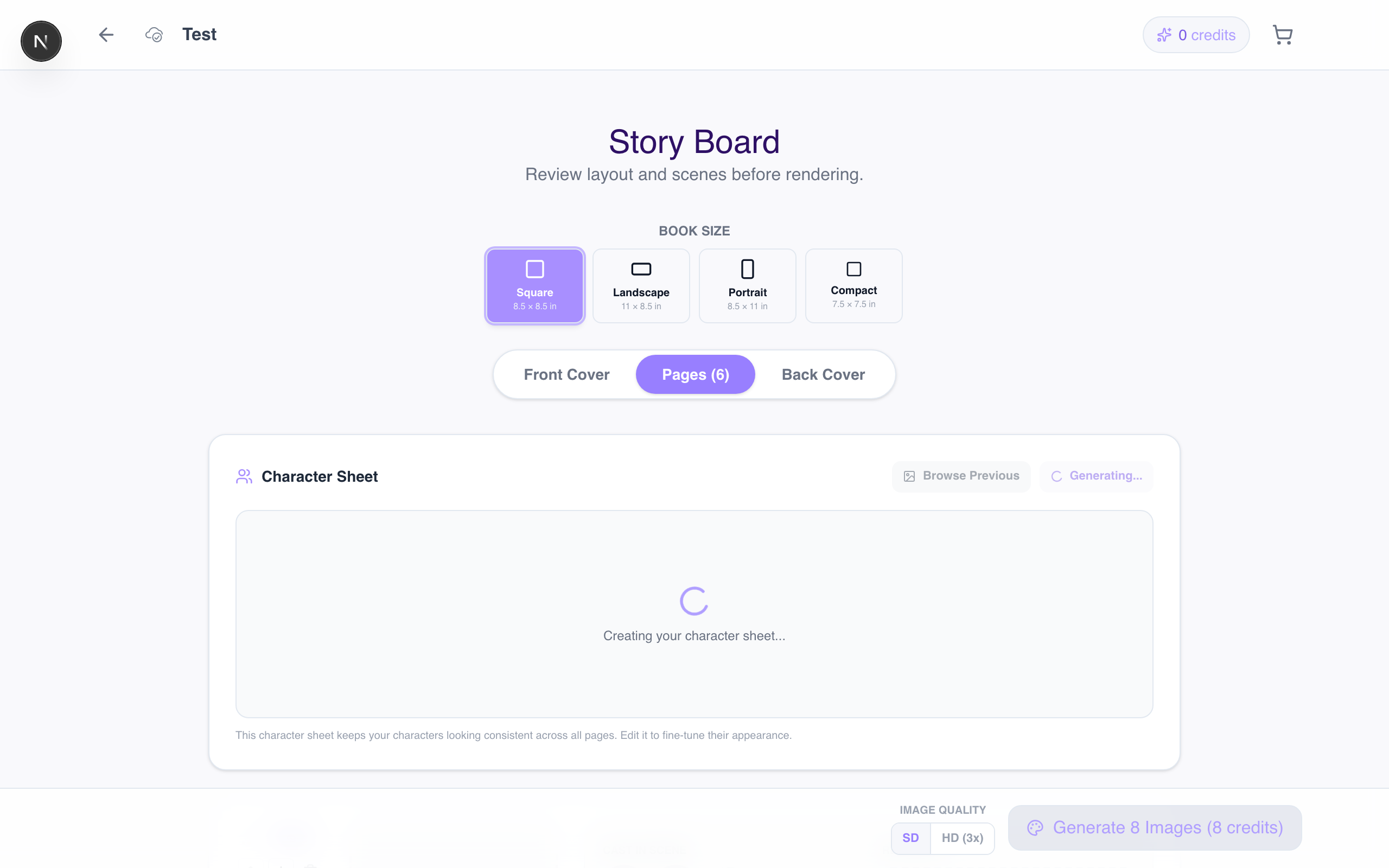
After your book is generated, click on it from your dashboard to open the book editor. You'll see a page-by-page view of your storybook.
Editing Text
Click on any text block on a page to edit it. You can:
- Change wording — rewrite sentences to your liking
- Fix names — adjust how characters are referred to
- Add personal touches — mention real places, inside jokes, or favorite things
Text changes are saved automatically.
Regenerating Illustrations
If an illustration doesn't look quite right:
- Click the illustration on the page
- Click "Regenerate"
- Wait 1–2 minutes for a new illustration
You can regenerate individual pages without affecting the rest of the book. Each regeneration creates a fresh illustration using the same scene description.
Rearranging Pages
To change the page order:
- Open the page navigator (thumbnail strip at the bottom)
- Drag any page thumbnail to a new position
- Pages reorder automatically
Tips
- Read the whole book through before making edits — you might want to change a detail that appears on multiple pages
- Regenerating an illustration gives you a different artistic interpretation, not just a slight variation
- Text edits don't change the illustration — the original scene description is preserved
edittextpagesrearrangeregenerate